Stealth Helper Installation Guide
Introduction
This guide provides step-by-step instructions for installing Stealth Helper on both macOS and Windows. Since the application is not currently signed, you will need to perform additional steps to bypass the operating system's security features.
Installation on macOS
Follow these steps to install Stealth Helper on your macOS device:
-
Download the installer: Download the appropriate
.dmgfile for your macOS system (Apple Silicon or Intel) from the Downloads section of the User Guide. -
Open the DMG file: Double-click the downloaded
.dmgfile to open the disk image.
-
Drag to Applications: Drag the "Stealth Helper" application icon into the "Applications" folder alias shown in the disk image window. This will copy the application to your Applications folder.
-
Launch the application: Navigate to your Applications folder and double-click "Stealth Helper" to launch it.
-
First Launch Warning: When launching
Stealth Helperfor the first time, macOS may show a dialog warning that the app was downloaded from the Internet. This is expected behavior for unsigned apps.
Click Open to proceed. You only need to do this once.
-
Enable Screen Recording: For Stealth Helper to function correctly (e.g., capture screenshots for OCR and AI assistance), it requires permission to record your screen.
When prompted, click on "Open System Settings".

This will open your System Settings to the "Privacy & Security" section.
-
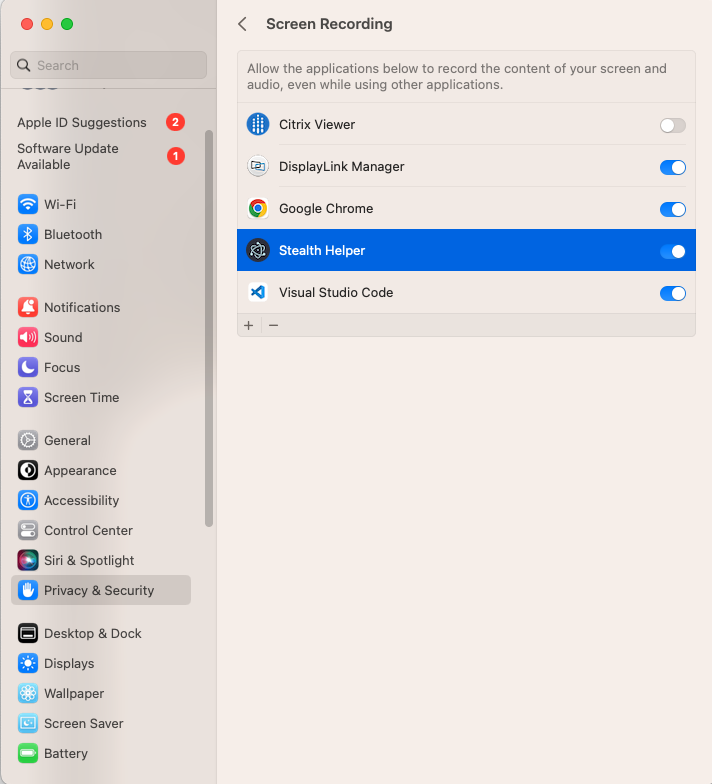
Grant Screen Recording Permissions: In "Privacy & Security", scroll down and click on "Screen Recording" or "Screen & System Audio Recording".

Click the "+" button, then locate and select "Stealth Helper" from your Applications folder to add it to the list. Once added, toggle the switch next to "Stealth Helper" to the "On" position (blue). You may need to click the padlock icon and enter your password to make changes.
-
Restart the application: Close System Settings. You need to restart Stealth Helper so it can capture screenshots.
Installation on Windows
Follow these steps to install Stealth Helper on your Windows device:
-
Download the installer: Download the
.exeinstaller file for Windows from the Downloads section of the User Guide. -
Run the installer: Double-click the downloaded
Stealth Helper Setup 1.0.5.exefile to start the installation process. -
Bypass SmartScreen: Windows Defender SmartScreen may prevent the installer from running because the application is not recognized (unsigned). You will see a "Windows protected your PC" message.
Click on "More info".

-
Run Anyway: After clicking "More info", an option to "Run anyway" will appear. Click on "Run anyway" to proceed with the installation.
-
Follow Installation Prompts: Follow the on-screen instructions to complete the installation. This typically involves accepting the license agreement, choosing an installation location, and clicking "Install".
-
Launch Stealth Helper: Once the installation is complete, you can launch Stealth Helper from your Start Menu or desktop shortcut (if created during installation).
Copyright © OpenStockAlert.com 2025